
Avamboo Encrypt for Outlook (New)
Email encryption directly in the new Outlook
Encrypt confidential emails directly in the new Outlook – with AES-256 encryption. GDPR compliant. No software required on the recipient’s side.
Compatible with the new Outlook for Windows and Outlook on the Web (Microsoft 365)
Features
Everything you need for secure email communication
AES-256 Encryption
Your emails are encrypted as password-protected PDFs using AES-256 – the standard used by banks and government agencies.
Password Manager
Passwords for your recipients are securely stored and automatically reused on the next send. Team-wide password sharing included.
No Recipient Software
The recipient only needs the free Adobe Acrobat Reader. No installation, no registration on the recipient’s side.
Encrypt PDF Attachments Only (Pro)
Subject and email body remain unchanged – only the PDF attachments are individually encrypted and replaced. Ideal for structured workflows.
GDPR Compliant
Meets all GDPR requirements for sending confidential data via email. Verifiable encryption for your compliance documentation.
Protection Against Unencrypted Sending
With the ‘Always remind to encrypt’ option in settings, a warning appears automatically before sending – so no confidential email goes out unencrypted by accident.
Zero-Knowledge Architecture
Your passwords and keys never leave your device unencrypted. Even Avamboo has no access to your data.
How It Works
Four simple steps to an encrypted email
Open the Add-in
When composing a new email, open the Avamboo Encrypt add-in via the add-ins toolbar in Outlook.
Compose Your Email
Write your email as usual – with subject, body, and attachments.
Encrypt & Send
One click on ‘Prepare Encryption’ – Avamboo Encrypt creates a password-protected PDF. Then simply click Send.
Recipient Opens PDF
The recipient opens the encrypted PDF with Adobe Reader and enters the agreed password.
Tutorial
Step by step: How to encrypt and open emails
Encrypting Emails
Launch Add-in
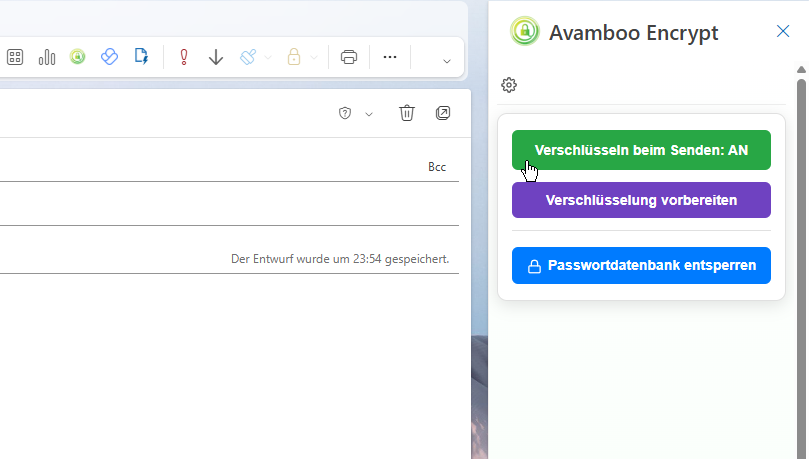
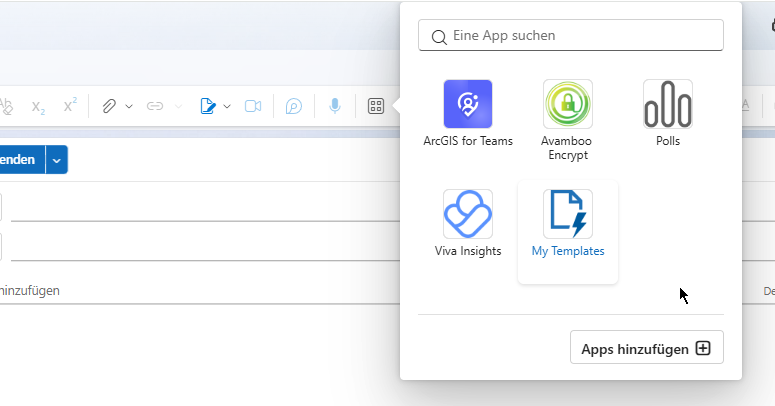
Open a new email window in the new Outlook. Click ‘Add-ins’ in the toolbar and select ‘Avamboo Encrypt’. The Taskpanel appears on the right side of the window.
Compose Email
Write the subject and body as usual. Add attachments if needed.
Full Encryption: ‘Prepare Encryption’
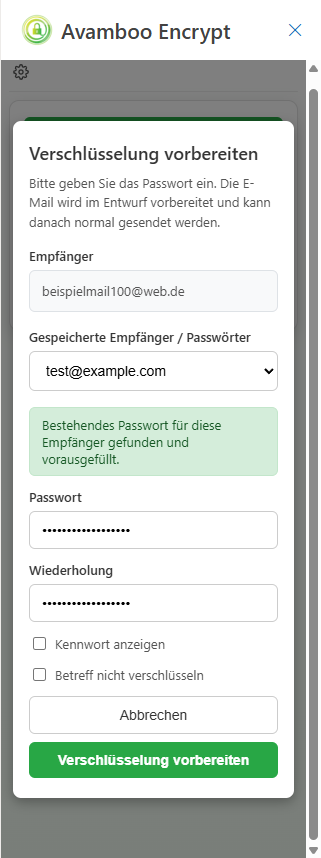
Click ‘Prepare Encryption’ in the Taskpanel and enter the password. Avamboo Encrypt creates a password-protected PDF with the entire email content and all attachments. Subject and body are replaced with encrypted versions. The email is ready to send – click Send.
Encrypt PDF Attachments Only (Pro)
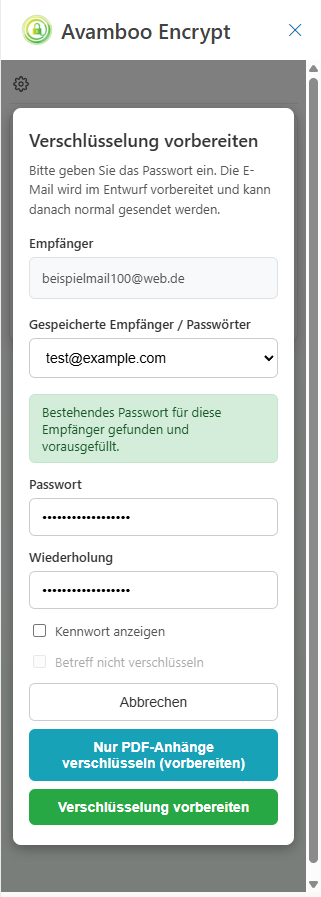
Click ‘Encrypt PDF Attachments Only’. Subject and email body remain unchanged. Only the PDF attachments are individually encrypted and replace the original files. Then click Send.
Opening an Encrypted Email
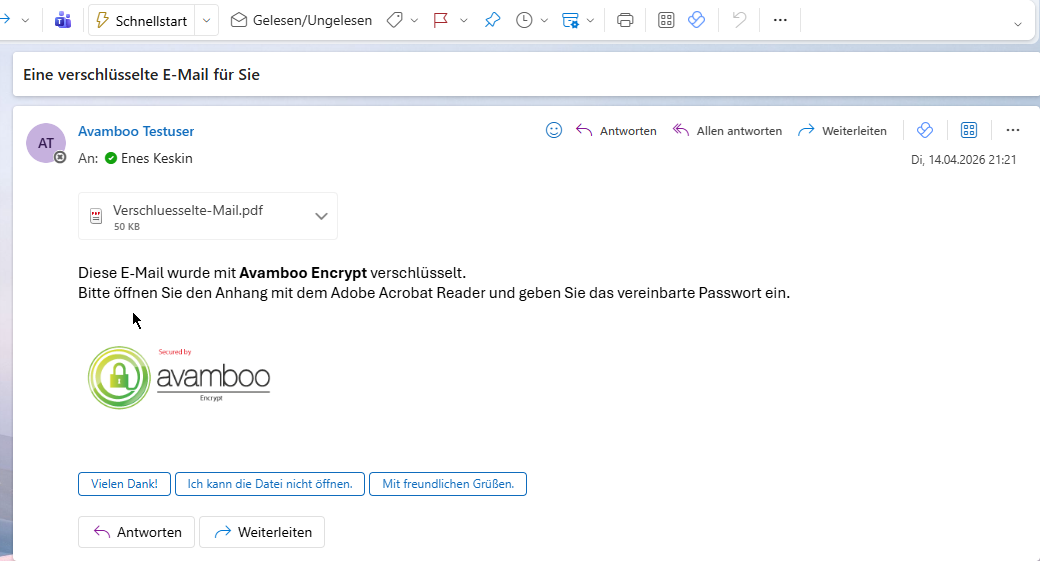
Receive Email with PDF Attachment
The recipient receives an email with an encrypted PDF file as attachment. The password is communicated via a separate channel.
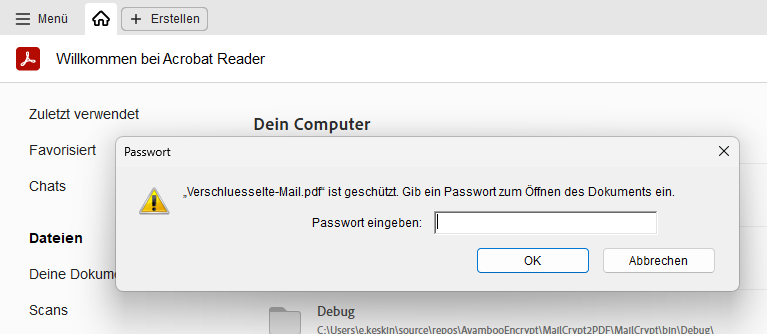
Enter Password
When opening the PDF in Adobe Acrobat Reader, a password prompt appears. Enter the agreed password – the document is decrypted.
Access Attachments
All original attachments are accessible via the paperclip icon in the left sidebar of Adobe Reader.
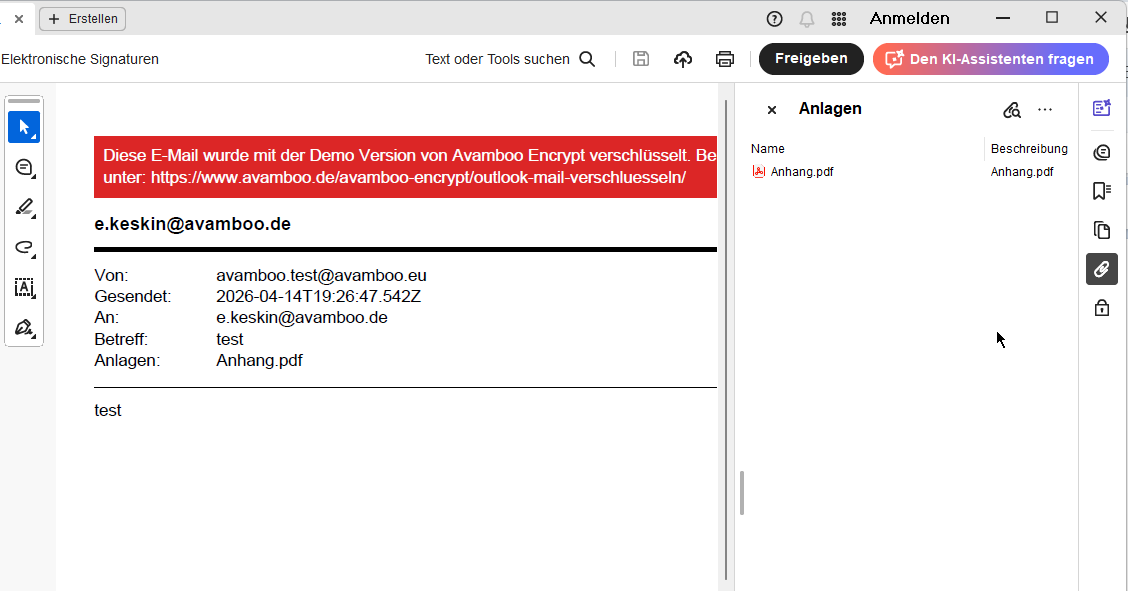
Note: Retrieve Original Email
If the ‘Embed original email’ option was enabled, you’ll find the original email as an .eml file in the attachment panel of the PDF (paperclip icon). Clicking it opens the file directly in Outlook. Move it to your inbox to use it like a regular email.
Pricing
Simple, transparent pricing
Free
2 emails/day, 30 emails/month
- Full encryption (body + attachments)
- Encrypt PDF attachments only
- Password manager (own database only)
- Shared password database
Pro
per user / year (10 € per month)
50 emails/day, 1,000 emails/month
- Full encryption (body + attachments)
- Encrypt PDF attachments only
- Password manager
- Shared password database
Enterprise
More than 1,000 emails per month or custom requirements? Contact us for a tailored offer.
Request a QuoteEach user receives their own license key.
All prices exclude 19% VAT.
Frequently Asked Questions
Which Outlook versions are supported?
Does the recipient need special software?
How secure is the encryption?
Are attachments also encrypted?
Why don’t I see the ‘Encrypt PDF Attachments Only’ button?
Do I need to set a password for the password manager?
How long does encryption take?
Can I roll out the add-in tenant-wide for all users in my organization?
Is Avamboo Encrypt GDPR compliant?
What is the difference between Free and Pro?
Contact
Have questions? We're happy to help.
Protect Your Email Communication
Start today with Avamboo Encrypt for Outlook (New) and send confidential emails securely and GDPR-compliant.
Get Started Free